
Create listings
Show what you want to trade away and what kind of items you want back.
CS2.trading helps players find trades, make offers, accept matches, and track the result. The item exchange still happens directly on Steam, so both traders stay in control of their own items from start to finish.
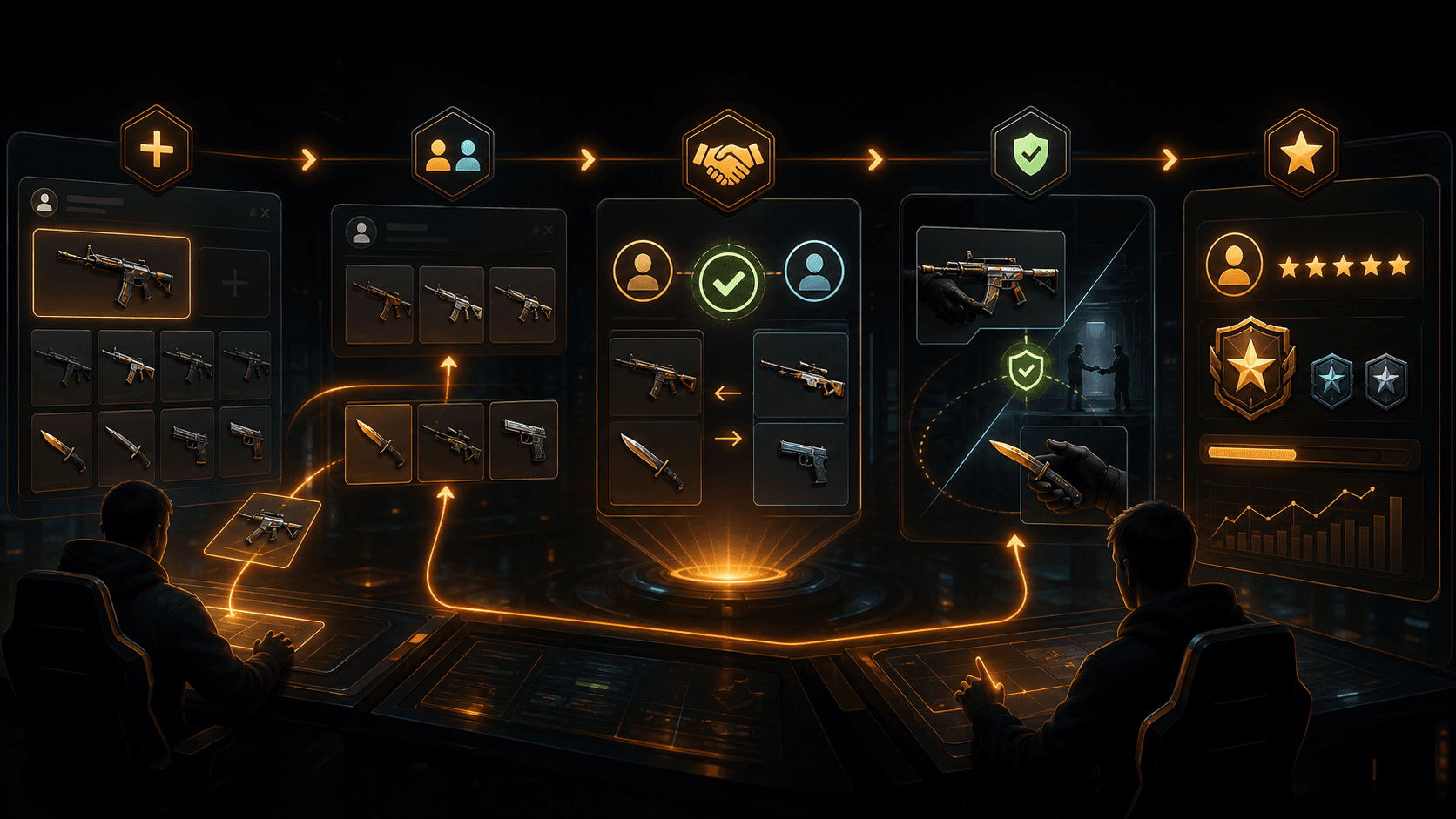
Show what you want to trade away and what kind of items you want back.
Send your own item offer on another trader's listing and let them decide.
Use Steam to complete the actual item exchange. The site does not custody items.
A listing is your public trade request. Other traders can inspect it and send you offers.

Use Steam sign-in so the site can connect your profile and check the CS2 inventory you choose from.
Your Trade Link stays private until a trade is accepted. It is needed so the matched trader can open the Steam trade offer flow.
Pick one or more tradable items from your verified inventory. Item details are saved as a snapshot for the listing.
Add exact items, item types, upgrade/downgrade goals, overpay preferences, or a short note.
Offers let you respond to someone else's listing with items from your own inventory.
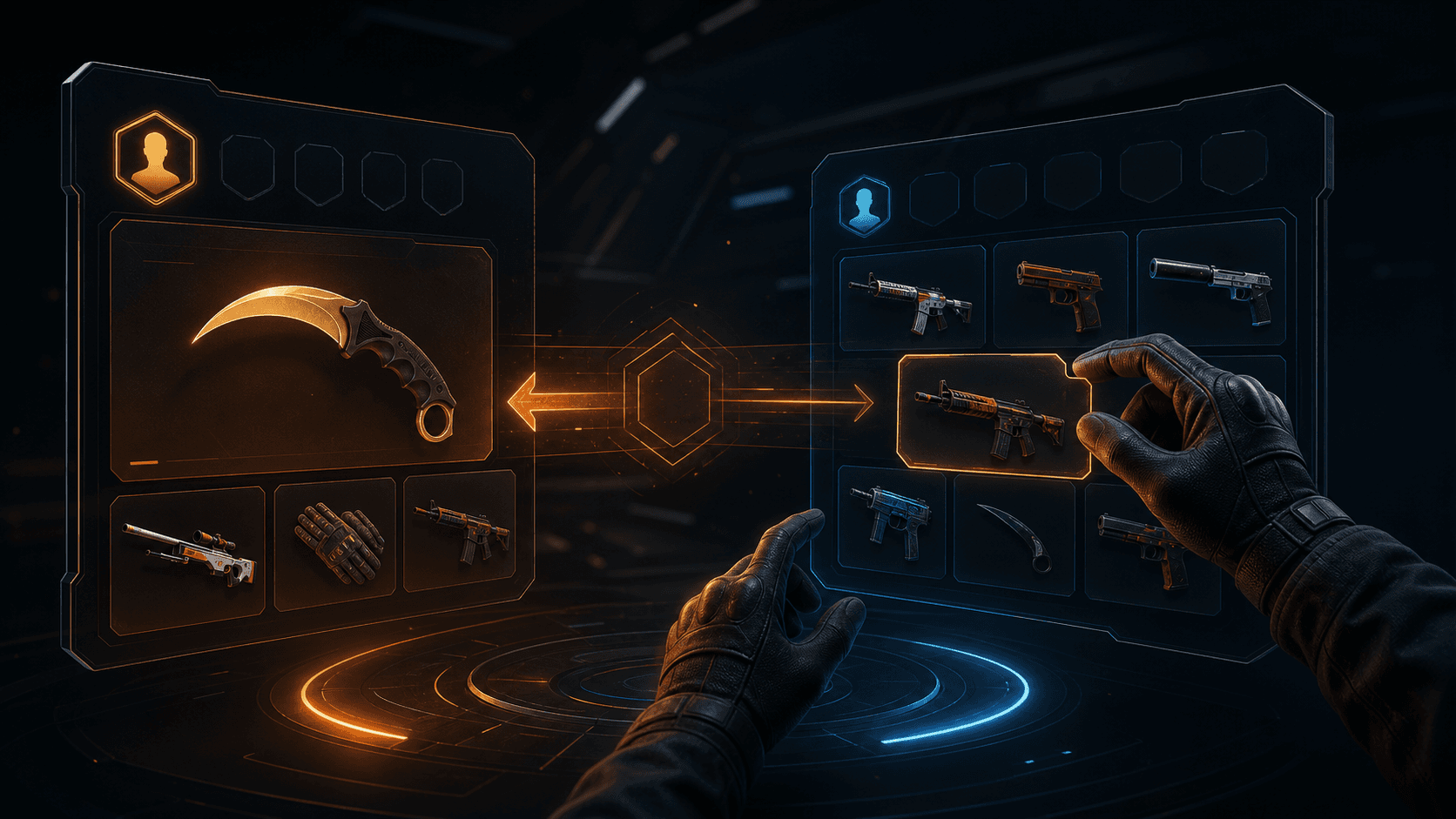
You need to be signed in and have a saved Trade Link before you can send an offer. It stays private unless the offer is accepted.
Review what they are offering and what they are looking for before you send anything.
Select tradable inventory items and add a short message if you need to explain the offer.
The listing owner can accept or decline. You can follow accepted trades from My Trades.
When a listing owner accepts an offer, CS2.trading shows the needed Trade Link only to the matched traders. From there, the two traders complete the real item exchange through Steam.
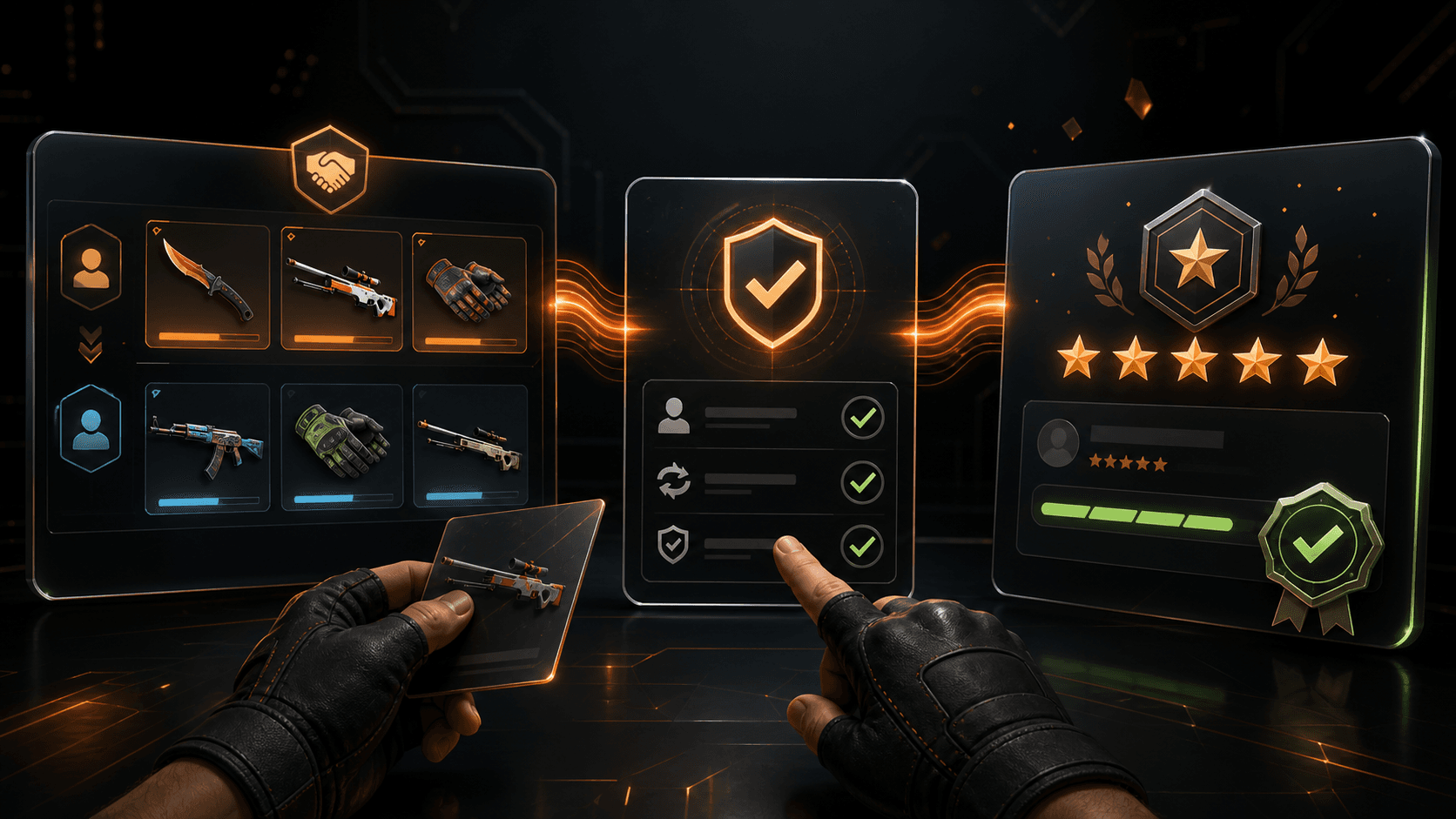
CS2.trading never holds your skins and never confirms Steam trades for you.
Always compare the Steam offer with the accepted listing or offer before approving it.
Check item names, wear, StatTrak, Souvenir, stickers, and total value inside Steam.
Do not mark a trade completed on the site until the item exchange is finished in Steam.
Once the trade is done, the site helps both traders close the loop and build a public trading history.
A trade moves forward after both sides have marked it completed on the site.
After completion, each trader can review the other trader for that specific trade.
Reviews help future traders understand how reliable and responsive someone has been.
Completed trades, reviews, daily activity, the Community Supporter name bonus, and some listing activity can earn XP and badges. For the full breakdown, visit the Level System.
Browse active listings, make an offer, or post your own trade request when you know what you want back.